
The 5 Best Photo Editing Apps for iPad
5 min read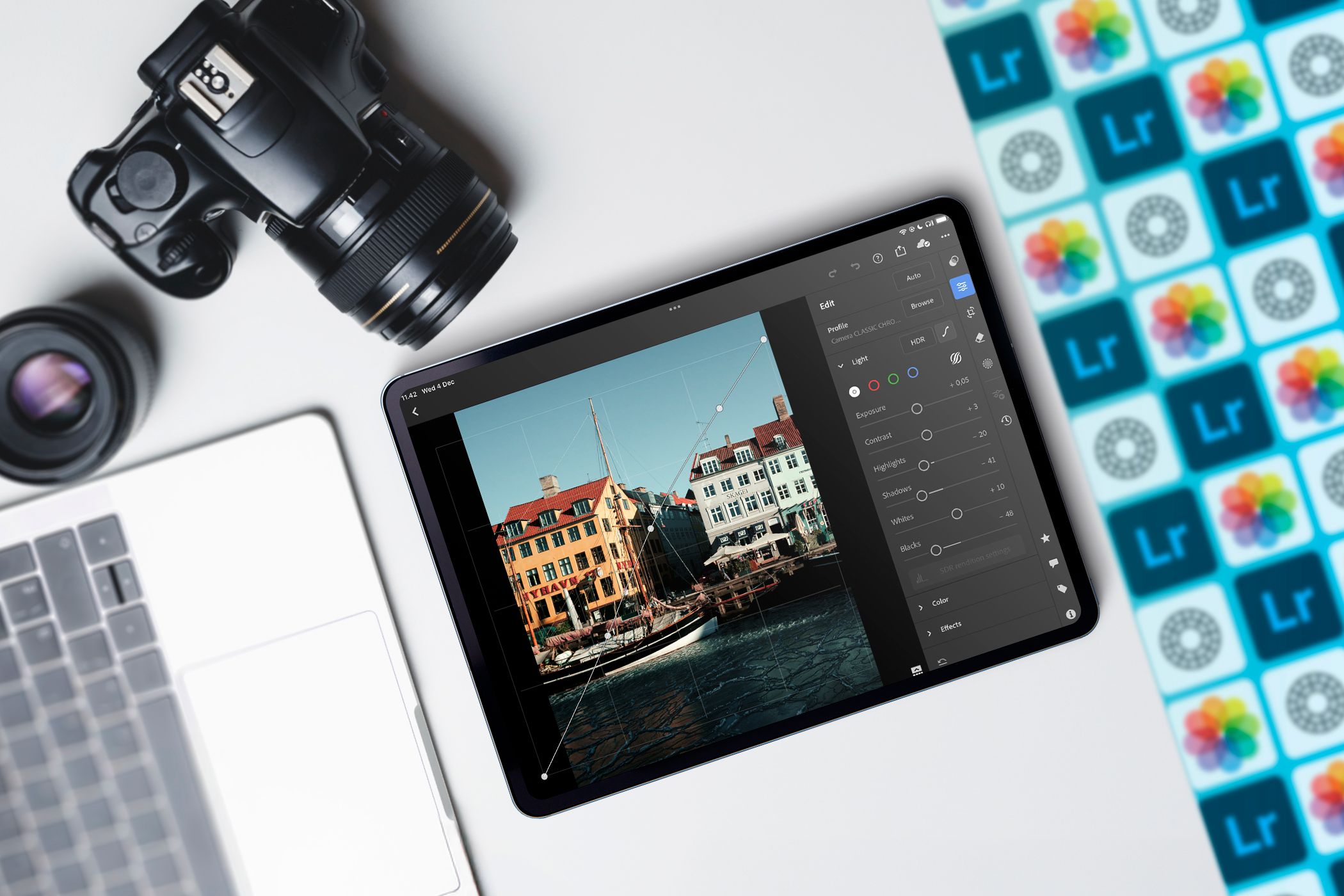
iPad photo editing has numerous advantages. It’s more portable than editing on your computer, and you can also edit a mixture of images from your smartphone and RAW camera files. The App Store is packed with fantastic photo editing tools that take full advantage of the iPad’s features
Lightroom CC is my all-time favorite iPad photo editing app for numerous reasons. The interface is easy to navigate, and you can also sync your edits in the computer and smartphone apps in real time. Moreover, you get the app included in an Adobe Photography Plan alongside Lightroom Classic; I recommend using Lightroom CC and Classic together for more comprehensive edits.
It’s very easy to transform your photos in Lightroom with numerous in-app presets; you can even get Lightroom to recommend specific ones for your picture, and you can add your own as you develop your photography style. You also get access to many of the same features in Lightroom Classic, such as color grading and camera profiles. It’s possible to adjust several aspects of your picture, such as reducing noise and removing chromatic aberration. Both of these are available even if you import smartphone pictures.
Lightroom CC allows you to remove blemishes, such as spots, with ease. When using the app, it’s easy to restore a previous version if you don’t like some of your most recent adjustments; you can name each version if you want to organize everything better.

While you don’t need a full Adobe CC All Apps subscription, it’s worth getting the $9.99/mo Adobe Photography Plan so that you can access Lightroom CC.
Download: Lightroom CC for iPadOS (Free, in-app purchases available)
2
Apple Photos
As great as Lightroom CC is, you don’t need to pay for photo editing software to adjust images on your iPad. I’ve used the Apple Photos app in many cases, such as when my camera SD card stopped working on a trip to Norway in 2023. If you’re a complete beginner to photo editing, I would actually suggest starting with Apple Photos and then investing in a different tool once you’ve learned the basics.

When editing with Apple Photos, you can use many of the best iPhone camera filters for photos on your device. This is by far my favorite feature; it works really well on both pictures I take with my smartphone and JPEG files I import from my Fujifilm camera. Like when editing on your iPhone, you can adjust the intensity of each filter you use. To compare to the original, simply tap on the image.

Apple Photos has many of the same tools as Lightroom. For example, you can adjust the saturation, vibrance, and exposure. However, you also have access to a few others; for example, you can alter the brightness and black point. Both of these are pretty underrated, and if you choose to purchase Lightroom, it’s worth thinking about how you can use Apple Photos and Lightroom together.
Comparing VSCO and Apple Photos is a good idea before picking the app you’ll choose, and VSCO has numerous advantages. For example, while many VSCO filters are locked unless you get a premium subscription, I really like the available free options. In my opinion, VSCO’s filters are more “artsy” than Apple Photos (and even many that you’ll find in Lightroom). They also look great on smartphone and camera pictures; I’ve experimented with both.

VSCO also gives you access to numerous interesting sliders; for example, I really like the Fade tool to give my picture more of a matted look. It works particularly well when I’ve taken high-contrast images and want to reduce the overall effect, and it’s also great for creating a vintage-style look.

You can adjust the exposure, crop your VSCO images, tweak the white balance, and change saturation. Some of the best features, such as adding grain and split toning, are pay-gated. However, if you don’t want a premium subscription, you can use other apps to add these effects to your pictures.

Besides editing photos, VSCO lets you share your creations with its community.
Download: VSCO for iPadOS (Free, in-app purchases available)
Photoshop Express is one of the worthwhile Adobe mobile apps, and it’s a superb companion for Lightroom and VSCO. I sometimes use all three tools together because there are specific things for which Photoshop Express is better than the others. One example is that it’s much easier to crop images for social media in Photoshop Express, thanks to its customized presets.
One thing that I really like about Photoshop Express is how easy it is to edit specific objects and subjects in your picture. You can often choose which one you wish to edit when picking a slider; you’ll see a thumbnail for each one.

Photoshop Express has numerous editing features, such as the option to adjust your whites, blacks, temperature, and tint. It’s also possible to reduce the luminance and noise in your image. Photoshop Express has several repair features, too, such as brushes and clone stamping. You can also make collages and more.

My only real complaints about Photoshop Express are that it’s generally better for editing JPEGs or camera RAW files that have already been converted to JPEG. So, I’ll typically do heavier editing in Lightroom if it’s a RAW file and then later import it into Photoshop Express for finishing touches.
Download: Photoshop Express for iPadOS (Free, in-app purchases available)
If you don’t want to pay for access to Lightroom CC, I think that Darkroom is one of the best alternatives. The interface is very similar, with many tools—such as Contrast, Clarity, and Highlights—being identical to what you’ll find in Lightroom. One feature I particularly like in Darkroom is that you can segment between Highlights and Shadows to add as much color as you want.
When I want to quickly adjust my pictures overall, I love Darkroom’s presets. Dare I say that I… prefer them to Lightroom’s suite?

Darkroom has tone curve sliders for your overall picture, along with RGB graphs for the reds, greens, and blues in your picture. Moreover, you can revert the image back to a previous version if you wish to. Another nice Darkroom feature is that you can pick between different grids, enabling more editing control. The app lets you edit RAW and JPEG files.

Download: Darkroom for iPadOS (Free, in-app purchases available)
Editing photos on my iPad has given me numerous advantages, and I love how I can be more flexible. Having tried many different apps, I can safely say you’ll have no problems finding a tool that meets your needs. While some require a subscription for access to all features, this isn’t always the case. And in many instances, you’ll find what you need for free.
