
Instagram’s Latest Bug Is Why I’m Backing Up All My Stories From Now On
4 min read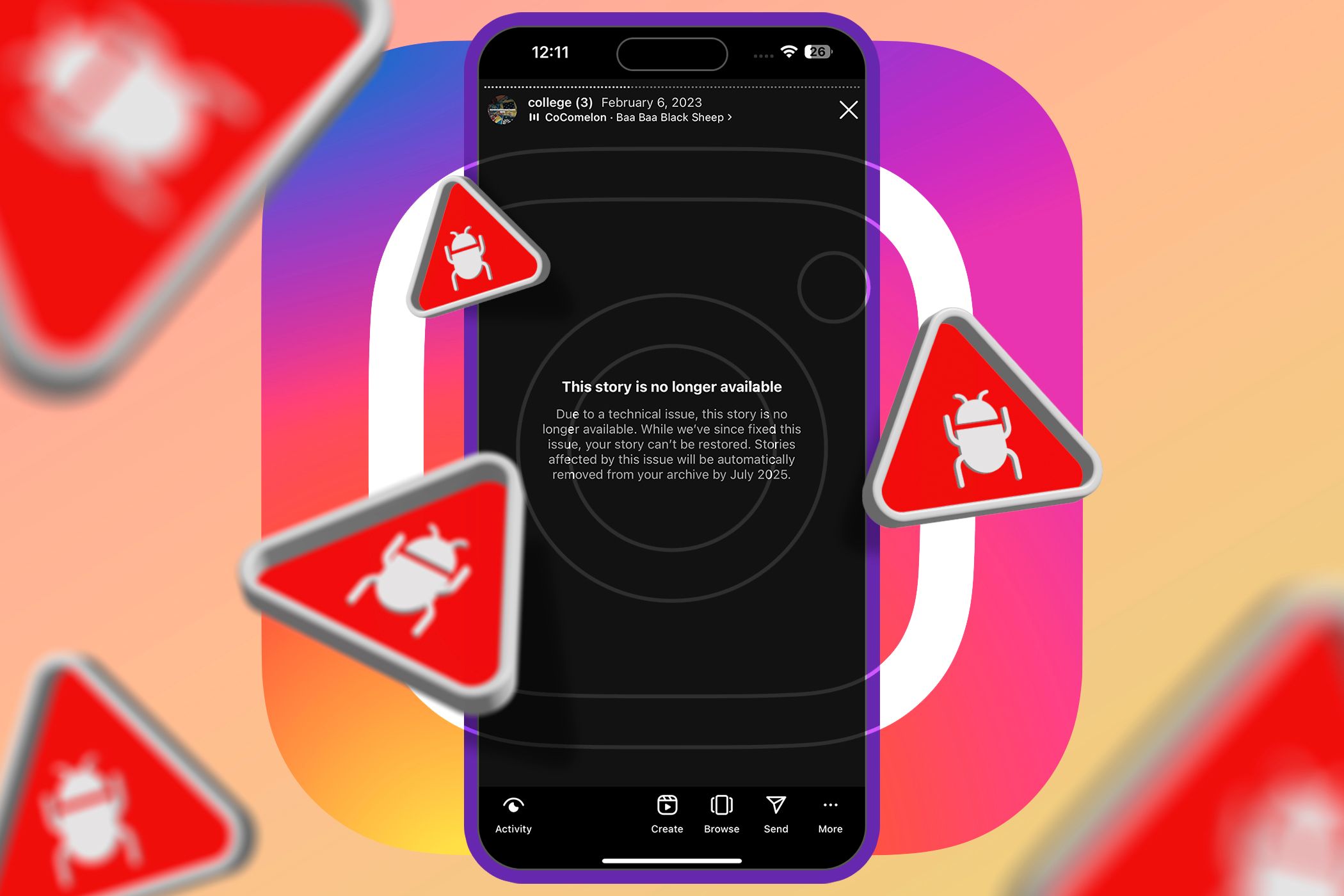
Quick Links
Key Takeaways
- A recent Instagram bug caused some archived Stories to be deleted. Meta has fixed the issue but is unable to restore the lost Stories.
- All impacted Stories will be removed by July 2025.
- It’s a good idea to back up your Instagram content using various methods to avoid losing important memories in the future.
For years now, Instagram Archives and Highlights have been my go-to for preserving memories. Unfortunately, a technical bug from Meta’s end affected several of my archived Stories—which is why I’ve decided to back up all my Stories moving forward.
What Exactly Was the Instagram Bug and Did It Affect All Users?
Instagram Stories are one of the best ways of saving your memories. After 24 hours, any Story you post is automatically stored in the Archive section.
You can either leave them in your Archive or add them to your Highlights, so your followers can view them after the initial 24 hours. While there are workarounds you can use to add images and videos to your Instagram Highlights, using the Stories archive is the simplest method.
Unfortunately, a technical glitch affected some images and videos saved in the Stories archive section, resulting in permanent deletion. While the company stated in the notification that they’ve now fixed the bug, it does ultimately mean that the lost Stories can’t be restored.
CNN reports that Meta declined to disclose exactly how many users were affected by this bug. However, it does appear to be quite widespread, particularly among those who post frequently and have many Highlights.
To check if your stories have been permanently deleted, go to your Instagram profile, tap the three-lined icon, and tap Archive under the How you use Instagram header. If you’re greeted with a notification titled “A technical issue affected some of your archived stories”, some of your Stories have been deleted permanently.
Another way to check is by going to your Instagram profile and checking your existing Highlights. If a Highlight’s cover has been replaced by a warning icon, it means the technical glitch affected those Stories as well.
When you tap a Highlight with a warning icon, you’ll yet again see a notification stating, “This story is no longer available.”

All affected Stories will be removed from your Archives automatically by July 2025.
Don’t Rely on Instagram Alone, Back Your Stuff Up
If your Stories have been affected by the glitch, there’s nothing you can do now. While you’ll see an option to Remove affected stories at once, you can’t manually save them to your device or view the deleted Stories.
The best course of action is to learn from this experience and back up your content going forward. When you’re uploading a Story, simply tap the three horizontal dots in the top-right corner and select Save from the dropdown menu to save it to your camera roll.


If you aren’t a fan of saving every image or video you post to your Story manually, you can enable an option to automatically save every Story you post to your camera roll.
To do so, switch to the Home tab and swipe left to reveal the camera. Then, tap the Settings icon in the top-right corner of the screen and tap Story. Finally, toggle on the switch next to Save story to camera roll.
Sure, if you’re sharing a funny meme or Reel you saw, you don’t necessarily need to save it elsewhere, since losing it would do no harm. However, if you’re posting an image of you and your friends hanging out or a video of your pet that you wouldn’t want to lose, backing up is always a good idea.
This way, you can recover your data in case a glitch like this occurs again. You have various backup options, such as different cloud storage services like iCloud or Google Drive, or physical storage like USB drives, memory cards, or external hard drives.
Regardless of the method you choose to back up your data, after this glitch, I’d recommend not trusting a single company with your data, even if it’s a major one like Meta. Having lost many memories saved on Instagram, I also took the time to back up all my images and videos I had saved on Snapchat. After all, you never know when you’ll need to recover your data.
