
Here’s How I Play Retro PC Games on My iPhone
4 min read
Key Takeaways
- You can download and install UTM SE on your iPhone to set up a FreeDOS virtual machine, which allows you to run various games from the DOS era.
- You’ll need the ISO file of your game ready on your iPhone before getting started.
- I strongly recommend connecting an external keyboard to your iPhone, as you won’t have access to dedicated touch controls.
Mobile games have surely gotten better over the years, but what if you want to play all the retro PC games from your childhood on your iPhone? Fret not, as I’ll show you exactly how to do that using a PC emulator!
Before You Begin
Before you get started with running all your favorite retro games on your iPhone, you’ll need a few things ready:
- Download and install UTM SE on your iPhone from the App Store.
- To run your games on a virtual machine, you’ll need an operating system, for which I recommend using FreeDOS. Just visit FreeDOS’ downloads page and click LiveCD to download it.
- Make sure to save a copy of your game’s ISO file on your iPhone using the Files app, as you’ll need it later.
- While optional, I strongly recommend connecting an external keyboard to your iPhone. You can use the on-screen keyboard instead, but remember it will cover half the screen while you’re playing games.
Using FreeDOS to play games is within legal bounds; however, it’s crucial to note that downloading ISOs for games you don’t own is strictly illegal.
Setting Up FreeDOS on Your iPhone
Now that you have everything ready, you can finally start creating a FreeDOS virtual machine. Here’s how you can do so:
- Open UTM SE on your iPhone, and tap the plus (+) icon in the top-left corner.
- Tap New Machine, and then select Browse under Boot ISO Image. Navigate to the folder where you downloaded FreeDOS and select the FD13LIVE.iso file.
- Next, you’ll need to allocate hardware resources to your virtual machine. Set the memory slider to 512MB, and use the plus (+) icon under CPU to assign one core. If you encounter performance issues later, you can always increase the memory and CPU cores.
- Finally, just enter the amount of storage you want to allocate to the VM. In most cases, 1-2 GB should be plenty.
- You’ll now see a summary of your virtual machine. Just tap Save in the top-right corner to continue.
After creating your virtual machine, UTM SE will show all the details about the VM, including the option to boot into it. But before you do that, you’ll need to mount your games as an external drive. Here’s how:
- Tap the settings icon in the bottom-right corner.
- Hit the plus (+) icon in the top-left corner and tap Import Drive.
- Go to the folder where you saved your game, tap the ISO file to import it into your virtual machine, and then tap Save.
Once you’ve done that, simply tap the play icon to boot into FreeDOS. Now, it’s time to finally run your games!
Running Your Retro PC Games
If you’ve ever used a DOS system in your childhood, the next steps will make you feel right at home. If not, don’t worry; I’ll guide you through every step!
- After booting into FreeDOS, press Enter to choose the Use FreeDOS 1.3 in Live Environment mode option. If you’re not using an external keyboard, tap the keyboard icon at the top to bring up the on-screen keyboard.
- Your games will be assigned a drive letter that you’ll need to navigate to. Usually, the first game will be assigned to drive E: and additional games will be assigned subsequent letters. For example, if you want to access drive E:, simply type in E: and press Enter.
- Next, find the name of your game’s executable file by typing DIR. This will list all the files on the drive. Look for a file with a .EXE extension and note its exact name.
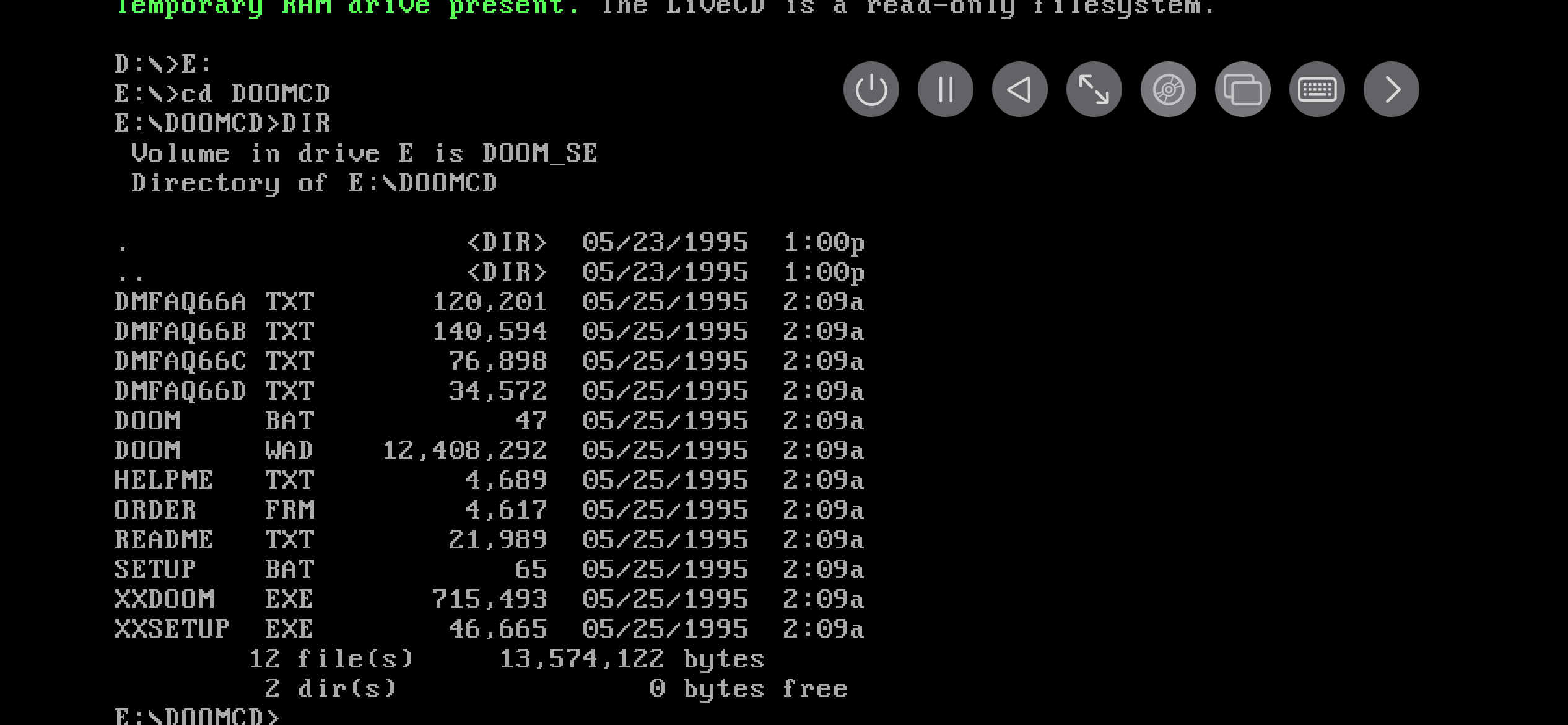
- Now, type the name of the executable file followed by its extension. For example, if the file is named DOOM, type DOOM.EXE, press Enter, and your game will finally start running!
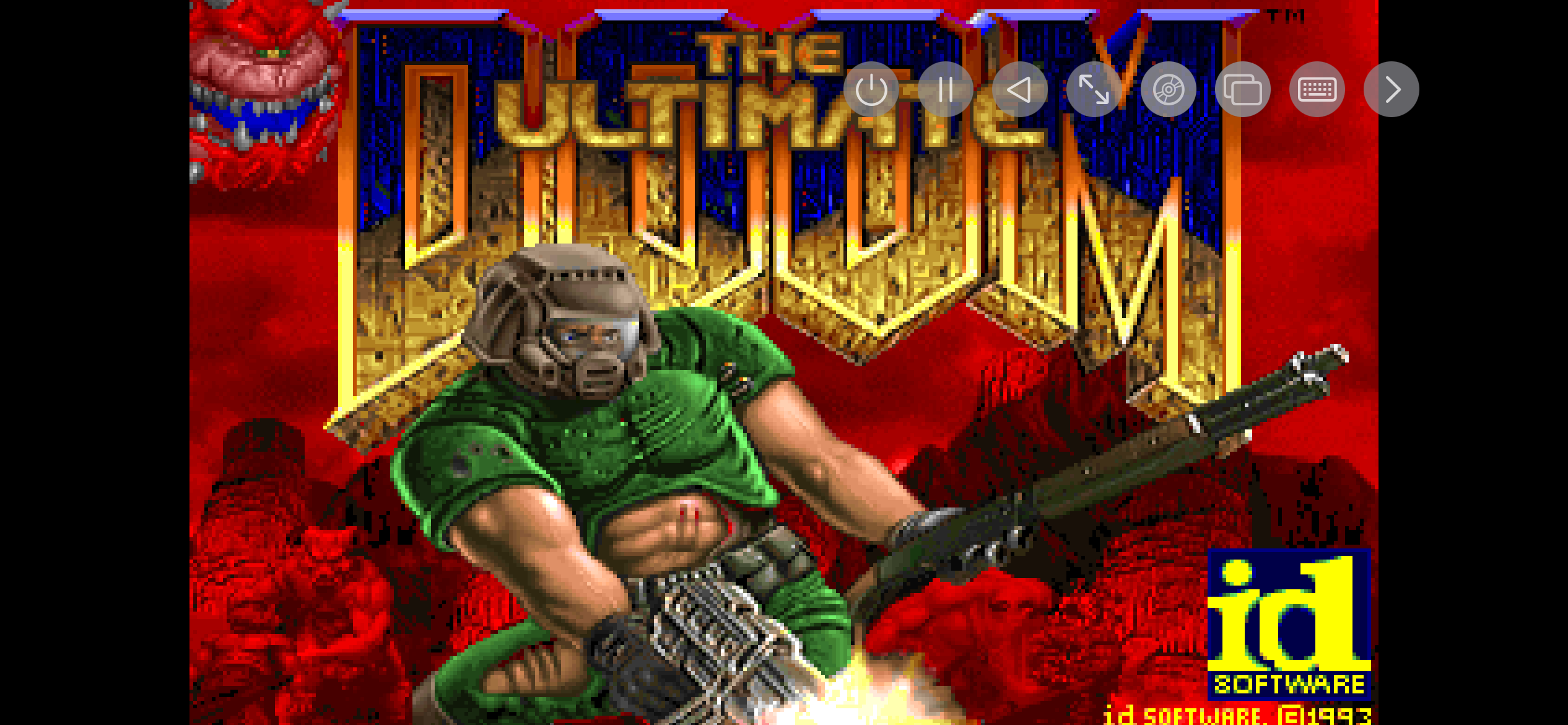


Now, you can enjoy all your childhood classics right on your iPhone. If the screen feels a bit small, consider connecting your iPhone to a TV for a more immersive experience. Once you’ve explored your collection of retro PC games, you may want to check out some of the best console emulators available for your iPhone for an even bigger library of games!
