
Here Are the Easiest Ways to Open Device Manager on Windows
2 min read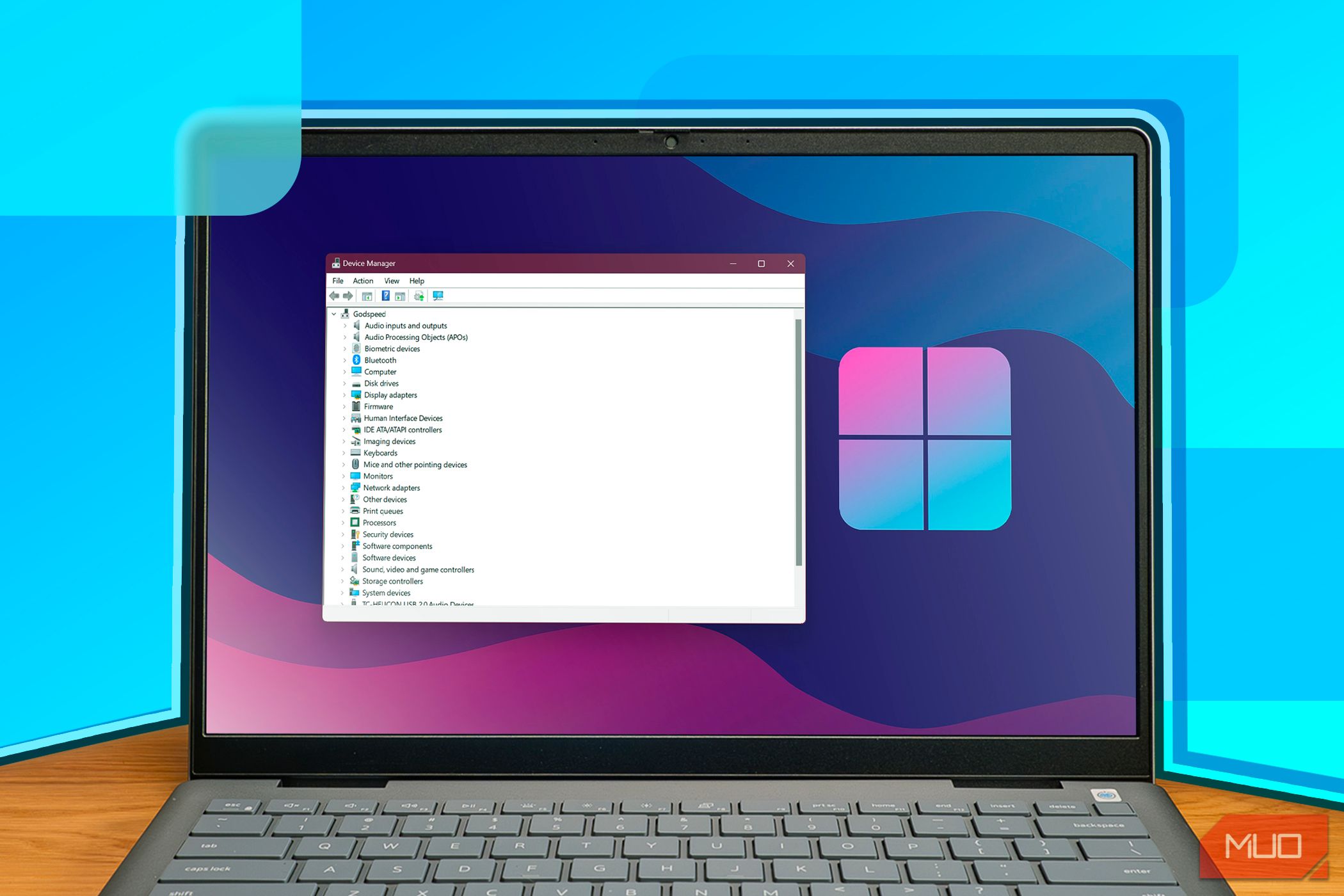
Quick Links
Device Manager is your go-to Windows utility when you need to update system drivers, disable malfunctioning devices, or check the status of your PC hardware. Here, we’ll walk you through the quickest ways to access this essential tool.
1. Use Windows Search
Windows Search offers one of the best ways to open programs on your Windows device. It can be particularly useful if you prefer not to navigate through multiple menus.
Here’s how you can quickly launch Device Manager using Windows Search:
- Press Win + S or click the Start menu search icon in the taskbar.
- Type Device Manager in the search field.
- Select Device Manager from the results.
The Quick Access Menu (also known as the Power User Menu) provides easy access to essential system tools like Device Manager, Task Manager, and more. Much like the search bar, this tool helps you open system apps without having to go through multiple windows.
Below are the steps to access Device Manager using the Quick Access Menu:
- Press Win + X or right-click on the Windows icon in the taskbar to open the Quick Access Menu.
- Select Device Manager from the options that appear.

3. Use the Control Panel
The Control Panel is a traditional way to access various system settings, including Device Manager. While it might not be as immediately accessible as the other methods, it’s still a reliable option, especially if you’re accustomed to opening the Control Panel for other tasks.
Here’s how to access Device Manager via the Control Panel:
- Type Control Panel in the Start menu search bar and select the Best match result.
- Click the View by dropdown menu and select Large icons.
- Select Device Manager from the menu items.

With these various methods at your disposal, accessing Device Manager is a breeze whether your PC is running Windows 10 or 11. Choose the one that suits you best so that you can manage your hardware settings effortlessly.
