
3 Ways to Install Older Versions of Apps on an Older iPhone
5 min read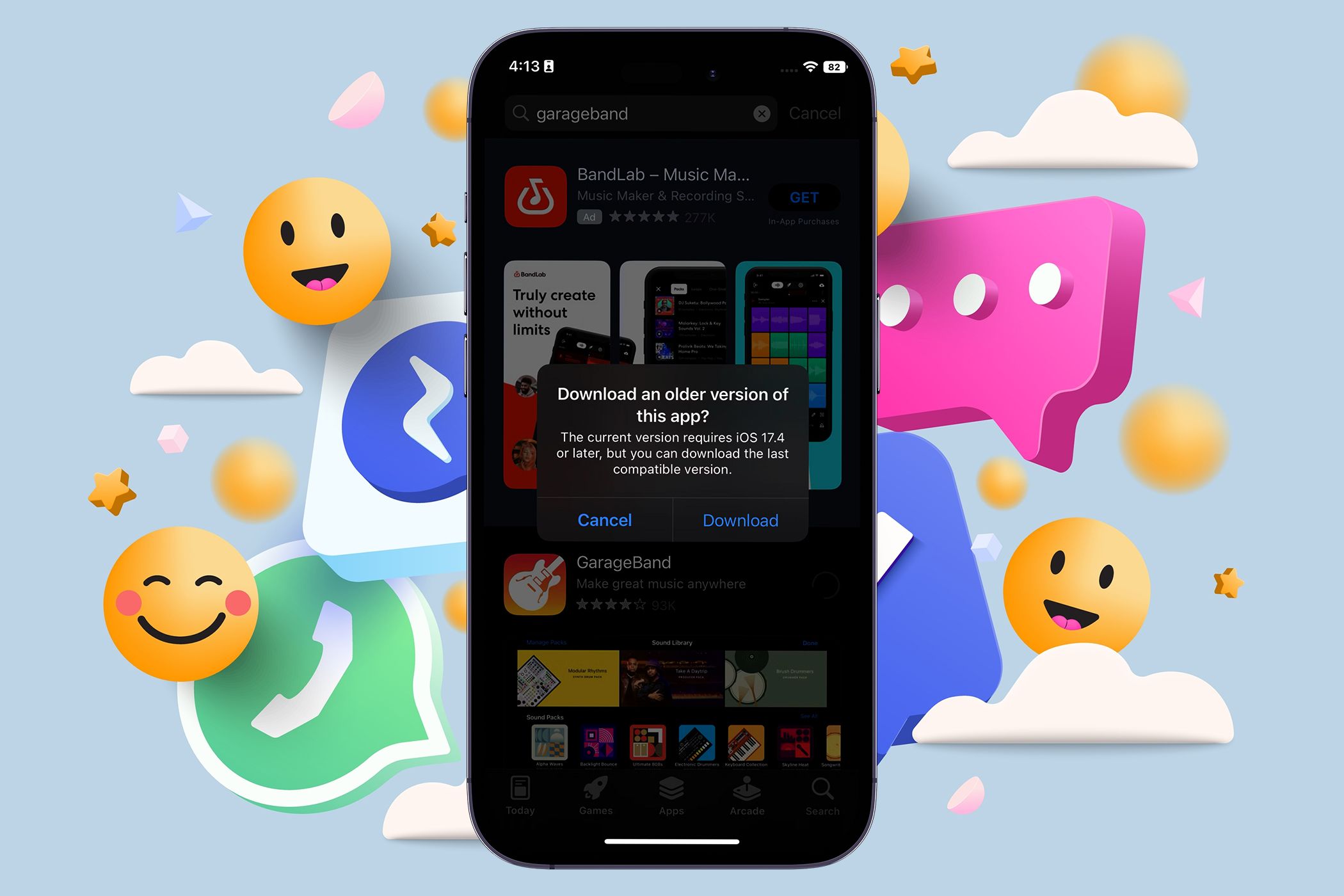
Key Takeaways
- Begin by trying to download an older version of the app by searching it up on the App Store.
- You can also download older versions of apps you’ve previously used by finding them in your Purchased list.
- If you haven’t used an app previously, you’ll need to use a newer iPhone with a more recent iOS version to download apps for older devices.
If you use an old iPhone, chances are you’ve run into the problem of not being able to download new apps. Luckily, you can download older versions of apps in a few ways. So, read on to explore your options.
1. Let App Store Download a Compatible Version
This is the easiest way to download an older version of an app, but you may not have heard of it because Apple’s App Store doesn’t clarify whether an older version exists. For example, it’s common to come across a message on an app’s page telling you that it Requires [iOS version] or later, leading you to believe that your phone is incompatible. But this isn’t always true.
You can ignore that message and proceed to hit the download button anyway. When you do, the App Store will display a message asking if you want to download an older version of the app. Follow these exact steps to get this pop-up:
- Open the App Store on your iPhone and search for the app you want to download.
- Tap the app name or icon to open its App Store page.
- Start downloading the app by hitting the Get button or tapping on the cloud symbol with the downward arrow.
- Wait for the App Store to display the message Download an older version of this app?
- Tap the Download button to install the older version.
If this doesn’t work, you will see the following message: This application requires [iOS version] or later. For instance, the Apple Sports app requires iOS 17.2 or later.
In such cases, you can try a couple of other solutions to download an older version of an app.
2. Download Apps From Your Purchased List
Another way to download older versions of apps is to find them in your Purchased or Apps (on newer iPhones) history. This works well if you’ve recently reset your iPhone to factory settings, only to find out that some of the previously installed apps now require a later version of iOS to work.
Additionally, some people find that the App Store won’t automatically give them an option to download a previous compatible version. This is despite having just had a working version installed on their phone. If you’re one of those people, try downloading an app from your Purchased app list instead.
The
Purchased
or
Apps
(on newer iPhones) list is not just apps you have paid for; it is a complete history of apps you have downloaded using your
iCloud account
.
To download previously purchased apps:
- Open the App Store app on your phone and navigate to your Account page by selecting the profile icon in the top right corner of the screen.
- Select Purchased or Apps (on newer iPhones) to bring up a list of all your purchased apps linked to that iCloud account.
- Scroll through the list to find the app you want to install.
- Hit the cloud icon with the downward arrow beside the app’s name to begin downloading it.
3. Use a New Device
I’ve tried re-downloading apps from my Purchased (or Apps) list and found that it worked with no issues. But what do you do if you haven’t purchased or downloaded an app in the past? One workaround is to use a newer iPhone running on a more recent iOS version to download the app you want.
The key is to log into your iCloud account on the newer device to ensure the app is saved to your history of app purchases. Once you download the app, head back to your old iPhone and try downloading it from your Purchased (or Apps) list or by searching for it.
To test this method, I used an iPhone 15 Pro to log into my iCloud account and downloaded an app that wasn’t compatible with my iPhone X. Once I got the app, I went back to my older iPhone and downloaded the same app by searching for it, and it worked!
Here are the step-by-step instructions if you need more clarity:
- Log into your iCloud account using an iPhone running a recent iOS version.
- Open the App Store and download the app you want.
- Go back to your old iPhone device and open up the App Store.
- Search the app on the App Store and attempt to download it again. When you get the Download an older version of this app? prompt, choose Download.
Alternatively, you can tap the profile icon in the App Store, select Purchased (or Apps on newer iPhones), and scroll through the list to find the app you just installed on your newer iPhone. Then, hit the cloud icon with the downward arrow beside the app to begin downloading it.
As you can see in the screenshots above, the App Store didn’t give me an option to download an older version. However, once I downloaded it on my iPhone running iOS 17.4, I was able to install the older version on my iPhone X.
Limitations of These Methods to Download Old Versions of Apps
Unfortunately, these methods won’t work for every app on the App Store. Some newer apps won’t have backward compatibility—especially the ones made for more recent iOS devices. Apps like that won’t have an older version available to download, and you can’t do anything about it.
The older your iPhone is, the less likely you are to find a compatible version of the app you’re after. But with how easy it is to see if an older app version is available, it’s well worth giving these methods a go. If you suspect another issue stopping you from getting an app, don’t worry, as there are several other fixes for apps not downloading on your iPhone.
With how Apple has designed the App Store, you can easily think that your favorite app is no longer compatible with your iPhone. But don’t be fooled! Several apps offer older versions that will work on your old iPhone, and they’re incredibly easy to get.
