
How to Turn Instagram’s Auto-Generated Captions On or Off
2 min read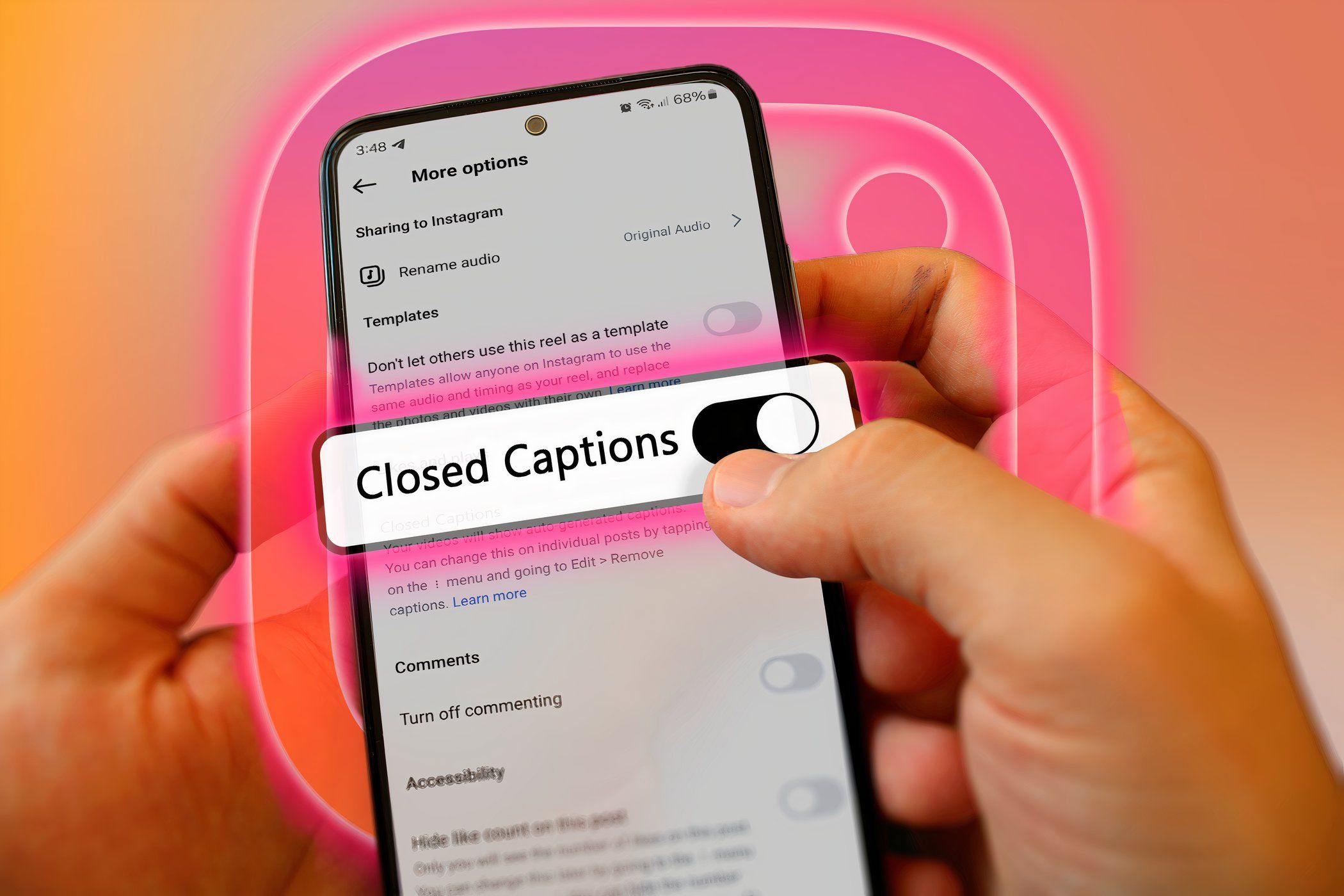
Key Takeaways
- Instagram’s auto-generated captions support accessibility for the deaf or hard-of-hearing.
- Enabling captions for videos you watch is simple through the app settings.
- To enable captions on videos you create, toggle it on in the Advanced settings before posting.
Instagram supports auto-generated captions on videos, which helps those who are deaf or hard-of-hearing or for those who prefer scrolling with audio off.
Here’s how to enable or disable auto-generated captions for Instagram videos that you watch or create.
What Is Instagram’s Auto-Generated Captions Feature?
Instagram’s auto-generated captions feature adds captions to the bottom of the video, generated by AI. While it won’t transcribe accurately 100% of the time, the AI continues to learn. If you’re a creator, it saves you time from manually transcribing. The captions appear in whatever language is your default in the app.
This feature is different from the one available on Instagram Stories, which lets you overlay captions on your video via the sticker functionality. Here, we’re going to focus purely on the standard accessibility caption functionality.
How to Enable Captions on Instagram Videos You Watch
If you want to enable auto-generated captions for videos you watch, it’s easy:
- Tap your profile picture in the bottom-right to go to your profile.
- Tap the three horizontal lines (hamburger menu) in the top-right.
- Beneath Your app and media, select Accessibility and translations.
- Select Captions and translations.
- Toggle on Show closed captions.
This enables captions universally, if the uploader has chosen to use them, so you don’t need to do this for every video. To disable captions, simply reverse the process.
How to Enable Captions on Instagram Videos You Create
By default, auto-transcribed captions on videos you post to Instagram are disabled. Here’s how to enable it:
- Create a new Instagram post.
- Select a video from your gallery or film one.
- Apply filters and trim as necessary, then select Next.
- Tap Advanced settings.
- Beneath Accessibility, toggle on Enabled closed captions. This will also apply for all future videos. Return to this screen at a later date if you wish to disable it.
&
If you post a video and want to remove the captions, you can. Here’s how:
- Tap the more icon (three vertical dots).
- Tap Edit.
- Select Advanced settings.
- Toggle off Enabled closed captions.
